When Your Streaming Software Does Not See a Camera, Card or Microphone
A short checklist for the moment a webcam, capture device or audio interface is plugged in and your streaming software still shows nothing.
Start with the simplest cause: only one application at a time can open most webcams and capture devices, so close video call apps and browser tabs that may be holding yours.
On Windows, open the privacy settings for camera and microphone and make sure desktop apps are allowed to use them, because an update can switch that permission off.
On macOS, the system asks once per application for camera and microphone access, and if you declined that prompt you must enable the app in Privacy and Security yourself.
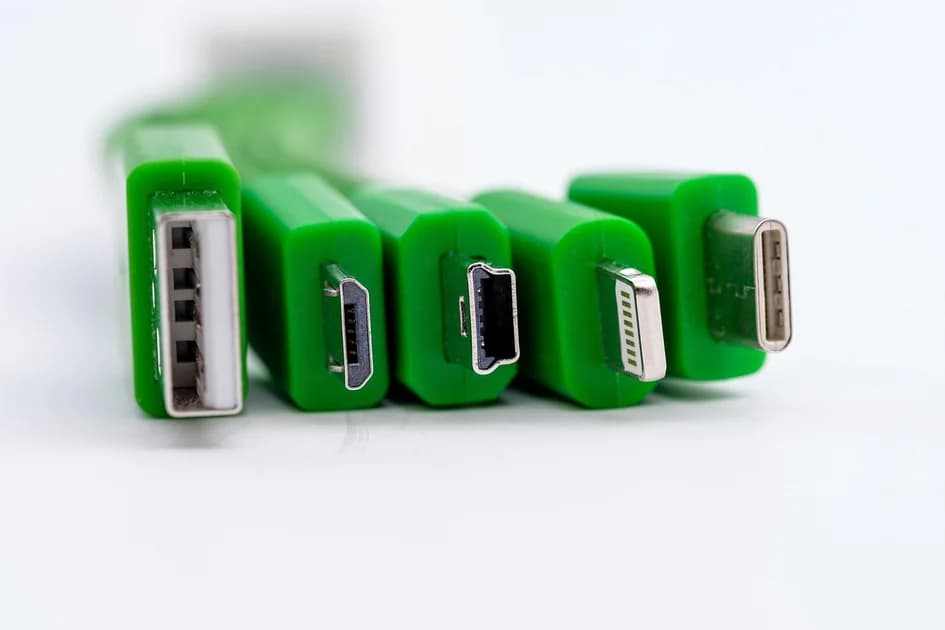
Plug the device straight into the computer instead of a hub or a monitor port, since many hubs cannot supply enough power or bandwidth for video.
Try a different cable before blaming the hardware, because some USB cables only charge and carry no data at all.
Devices that follow the UVC or USB audio class standards need no driver, while PCIe cards and many professional audio interfaces do, and their drivers must match your operating system version.
If the device appears in the list but the preview stays black, the problem is usually the signal it receives, not the connection to your computer.
Check that the camera actually outputs a picture on its HDMI port, as many cameras disable that output while a menu is open or in some playback modes.
A camera set to a resolution or frame rate the capture device cannot accept gives a black preview, so lower the output on the camera to a common Full HD format first.
Copy protection from laptops and media players also produces a black preview, and no software setting on your side can remove it.
When a picture arrives at a low resolution or a jerky frame rate, open the device properties and select the resolution, frame rate and video format by hand instead of leaving them on automatic.
In OBS you can deactivate and reactivate a source, or choose the device again in its properties, which often brings back a device after the computer woke from sleep.
For audio interfaces, match the sample rate in the operating system, the interface software and your streaming application, because a mismatch causes clicks, drift or silence.
If a microphone shows a level in the system settings but not in your software, check that you picked the right input channel of a multi-channel interface.
Restart the device before the computer, and the computer before reinstalling anything, because a fresh handshake fixes a surprising share of these problems.
Keep a note of the exact settings that worked, so you can return to a known good state quickly when something changes before a show.
Finally, connect and test every device at least an hour before you go live, which leaves time to swap a cable or a port without your audience waiting.
dcast Team
Professional video streaming experts helping creators succeed.
Related Articles
Start Your Video Business Today
Upload, stream and sell your videos. Start on the free plan — no card needed.
Get Started Free