Video on demand
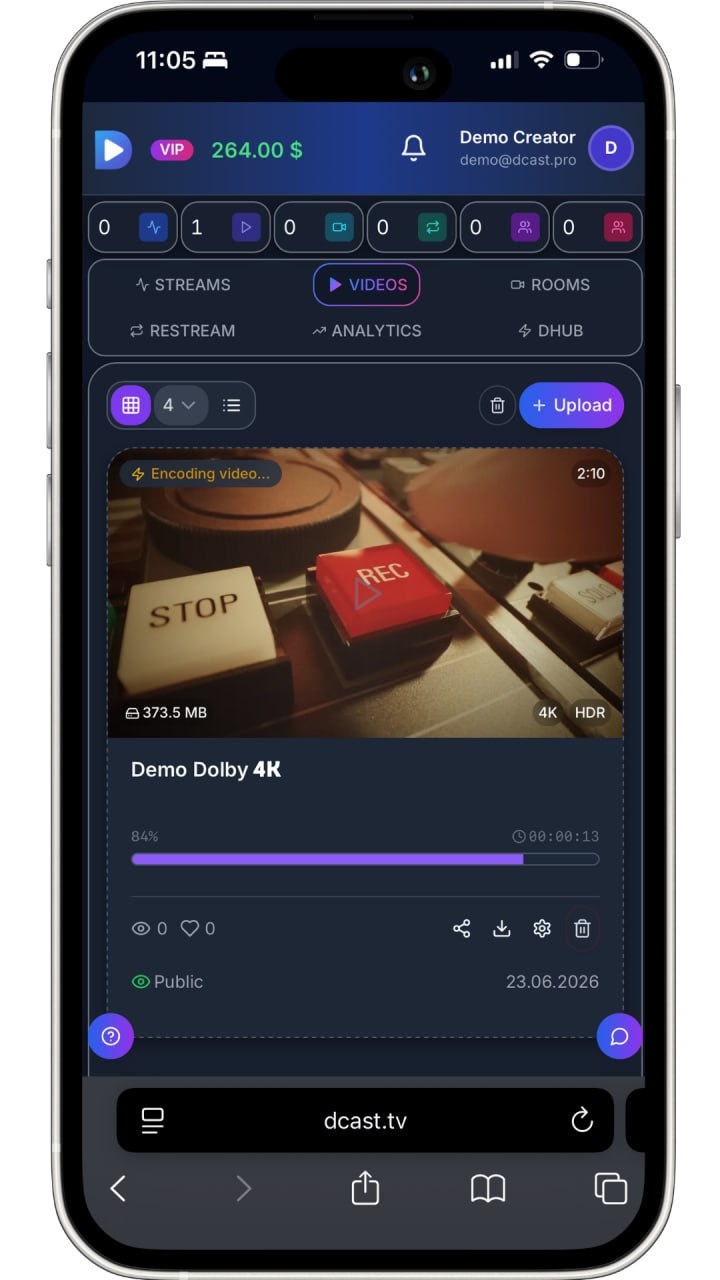
What happens while your video processes
Learn what DCAST does after the upload, why it takes time, and when your video is ready to share.
Before you start
- You have uploaded a video file.
- The video appears in your Videos library with a Processing or Pending status.
Steps
- 1Open Videos from the dashboard.
- 2Find your uploaded video — it shows a status such as Processing or Ready.
- 3Processing means DCAST is creating versions for different screen sizes and connection speeds.
- 4You do not need to do anything — this happens automatically.
- 5For a typical one-hour video, processing can take 10–30 minutes.
- 6Refresh the page every few minutes to check the status.
- 7When the status changes to Ready, click the video to open it.
- 8Play the preview to confirm that audio and picture both work.
Expected result
The video status shows Ready and the player loads a smooth preview.
Common problems
Processing seems stuck.
Very large or high-resolution files take longer. Wait an extra 20 minutes and refresh.
Processing failed.
Re-export the video from your editing software and upload again. MP4 files with H.264 video work best.
The preview plays but there is no sound.
Check the original file — it may not have an audio track, or the audio may be on a muted track.